
Channels & integrations
Your agent isn't locked in the dashboard. Pair it with Telegram or WhatsApp, or connect your Google account so it can act on your behalf.
Chat in the dashboard
Every agent has a chat and control surface built in: the agent's page, plus its framework's own UI where one exists (OpenClaw Dashboard, Hermes Dashboard, Harness Workbench) and the Console tab. Sessions, files, cron jobs, and usage live alongside the conversation.
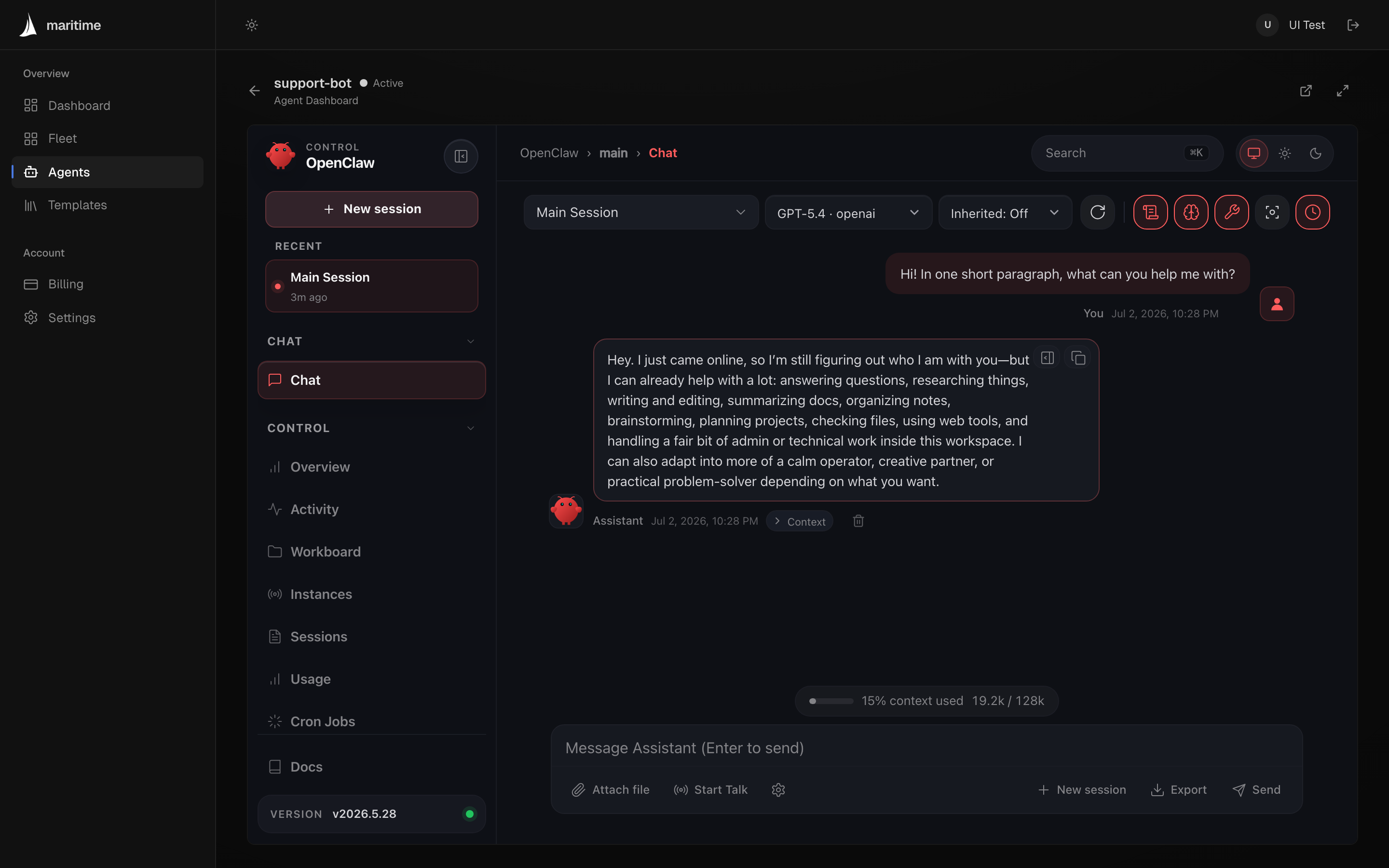
Where channels live
Open your agent → Channels tab. (Not the sidebar's Integrations page; that is a marketplace of partner services.) Pairing needs the agent running. Start it first if it's asleep (config saved while sleeping is applied on the next wake).
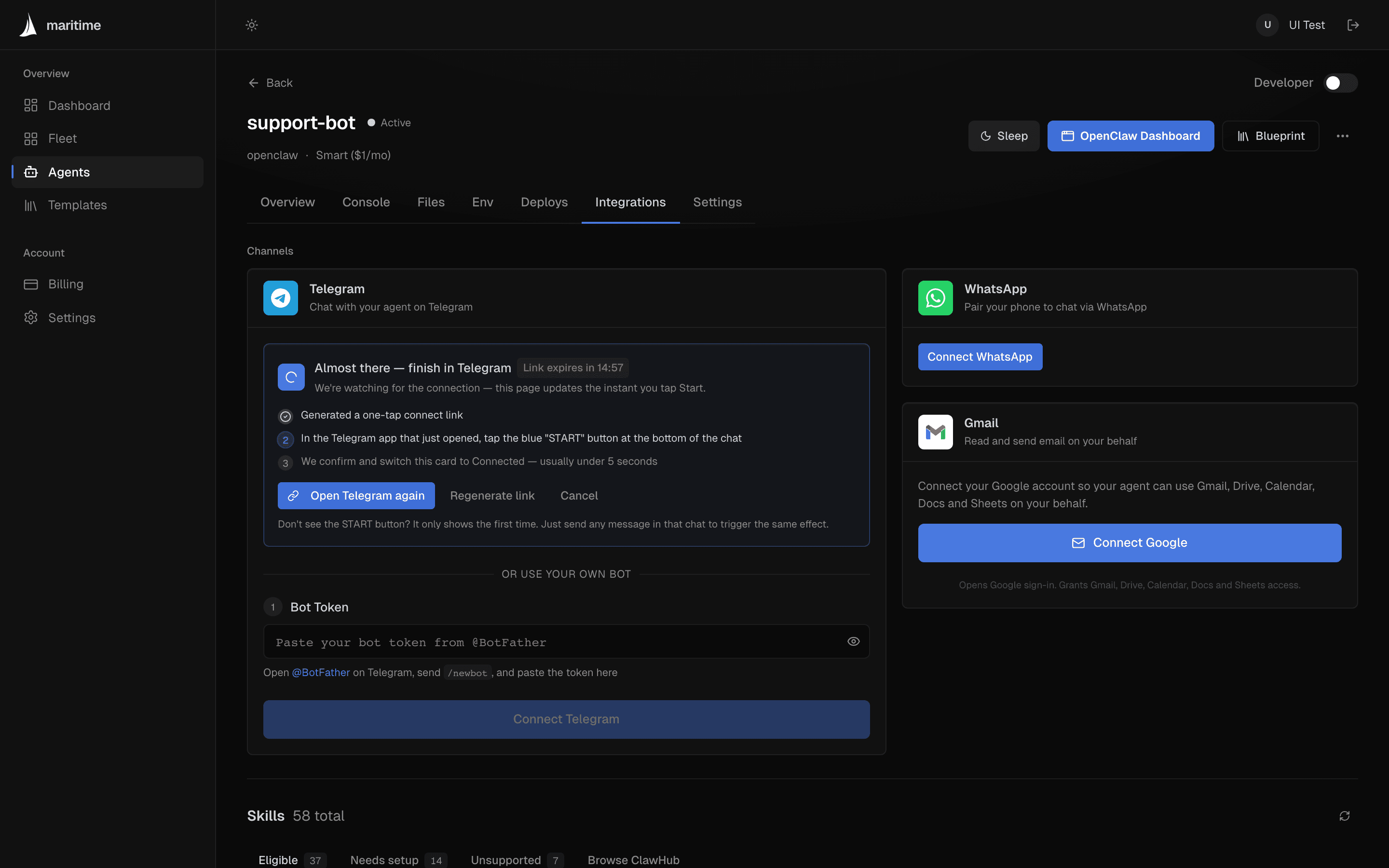
Telegram
Telegram rides the same delivery path as dashboard chat and the API. The Channels-tab card (including the one-tap shared bot) is for OpenClaw-family agents; connecting your own bot via the API (below) works for every framework, including custom containers.
- Fastest path: use Maritime's shared bot. Click the one-tap connect link, tap START in Telegram, and the card flips to Connected within a few seconds.
- Your own bot: create one with
@BotFather(/newbot), paste the token, and Connect. Your bot, your branding. - DMs default to open: a bot Maritime connects answers anyone who finds its handle. Since a @BotFather handle is public, either keep the bot name unguessable or restrict who may DM it via
channels.telegram.allowFromin the agent'sopenclaw.json(see the upstream OpenClaw docs).
Connect your own bot via the API
Everything the dashboard card does is one API call. Every agent lives in a project (its projectId is on the agent object); pointing a bot at the project makes it the agent's Telegram front door. Maritime validates the token with Telegram, registers the webhook, and routes each chat to the right agent. Needs an API key with the secrets scope; the token is stored encrypted.
# 1. Find your agent's project id
curl -s https://api.maritime.sh/api/agents/<agent-id> \
  -H "Authorization: Bearer $MARITIME_API_KEY" | jq -r .projectId

# 2. Point your @BotFather bot at it
curl -X POST https://api.maritime.sh/api/projects/<project-id>/channels/telegram \
  -H "Authorization: Bearer $MARITIME_API_KEY" -H "Content-Type: application/json" \
  -d '{"botToken": "123456:ABC-your-botfather-token"}'

# Disconnect (also removes the Telegram-side webhook):
curl -X DELETE https://api.maritime.sh/api/projects/<project-id>/channels/telegram \
  -H "Authorization: Bearer $MARITIME_API_KEY"
With the project's newChatPolicy set to spawn, each Telegram user who DMs the bot gets their own agent instance, same policy engine as the HTTP front door.
Connect WhatsApp pairs your phone to the agent (QR / phone pairing, like WhatsApp Web). Available for OpenClaw-family agents while they're running. Once paired, the badge on the card shows the connection and your agent answers your WhatsApp messages.
Google Workspace
Connect Google runs a standard OAuth consent and lets the agent use Gmail, Drive, Calendar, Docs, and Sheets on your behalf: read and send email, check your calendar, edit documents. Available for OpenClaw agents. Tokens are stored encrypted with the agent's environment; disconnect anytime from the same card.
Other channels
Discord, Slack, Signal, and Microsoft Teams can be wired through the agent's gateway configuration (bot token + DM policy, same model as Telegram). The per-channel setup guides live in the upstream OpenClaw docs. Cron schedules and webhook triggers (which wake a sleeping agent rather than chat with it) are covered in Triggers & schedules.