
Connect Your OpenClaw Agent to Hundreds of Apps with Composio
Composio handles OAuth, OpenClaw speaks MCP natively, and your Maritime agent gets Gmail, Slack, and Notion tools in minutes. Exact commands included.
Your agent runs on its own computer. It can read files, browse the web, and run code. Then you ask it to send an email from your Gmail, drop a row into a sheet, or post to your team's Slack, and it hits the oldest wall in software: it does not have your accounts.
Getting an agent into your accounts is an authentication problem, not an intelligence problem. Every app wants an OAuth registration, a consent screen, a scope review, token storage, and refresh handling. Multiply that by every tool you use and it is weeks of integration work that has nothing to do with what you actually want the agent to do.
This post is the shortcut: Composio, connected to your OpenClaw agent over MCP, with the exact commands below.
The short version: create a Composio MCP server that exposes only the tools you want, connect your account through Composio's hosted auth link, then register the server URL on your agent with openclaw mcp set using the streamable-http transport and your API key in a header, and restart the agent. Tools arrive namespaced, like composio__GMAIL_SEND_EMAIL, and the same recipe connects Gmail, Slack, Notion, and hundreds of other apps to your AI agent.
The Two Pieces: MCP and Composio
MCP (Model Context Protocol) is the standard for handing tools to an agent. OpenClaw, the framework behind most Maritime agents, ships a native MCP client. It can launch local tool servers or connect to remote ones over SSE or streamable HTTP, with custom headers for auth. One config entry, and every tool the server exposes shows up in the agent's toolbox.
Composio is an integration platform that wraps hundreds of apps (Gmail, Slack, Notion, GitHub, HubSpot, Google Sheets, and more) as MCP tools, and handles the part that actually hurts: auth. You connect an account once through their hosted consent flow; they store the tokens, refresh them, and expose your connected account behind a personal MCP server URL. Their managed OAuth apps mean nobody has to register anything in a Google Cloud console or pass a verification review before an agent can send an email.
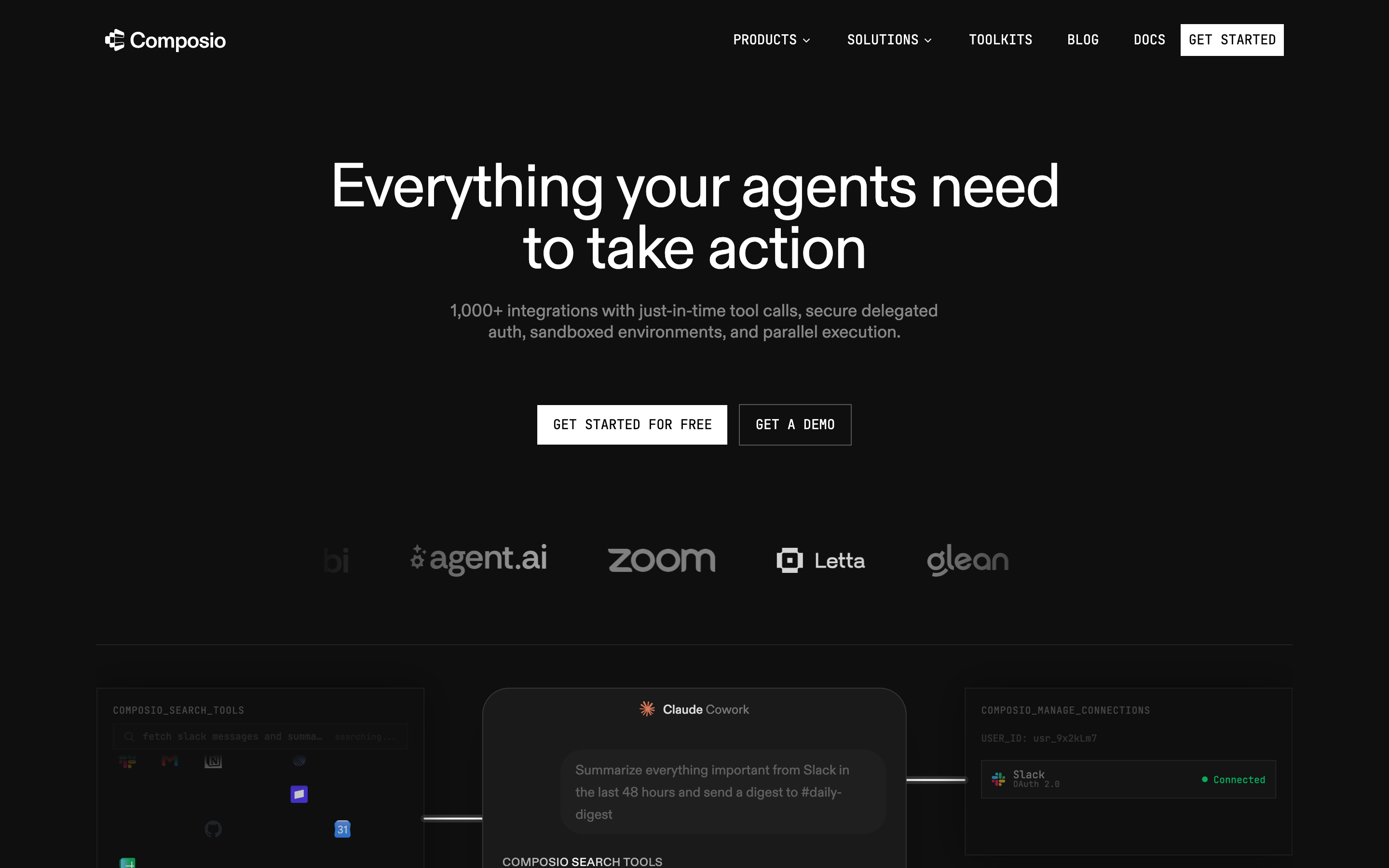
Put the two together and the shape is simple. Composio hosts the tools and holds your credentials. Your OpenClaw agent connects to the URL like any MCP client.
Step 1: Create a Composio MCP Server
Sign up at composio.dev (there is a free tier) and grab an API key. Create an auth config for the toolkit you want; their dashboard walks you through it, and the default Composio-managed auth is fine. Then create an MCP server that exposes only the tools you want your agent to have:
from composio import Composio
composio = Composio(api_key="YOUR_COMPOSIO_API_KEY")
server = composio.mcp.create(
    name="gmail-for-my-agent",
    toolkits=[{"toolkit": "gmail", "auth_config": "ac_YOUR_AUTH_CONFIG"}],
    allowed_tools=["GMAIL_FETCH_EMAILS", "GMAIL_SEND_EMAIL"],
)
Keep allowed_tools tight. An agent that reads and sends email does not need the delete tools. The full tool list for each app is in Composio's toolkit docs.
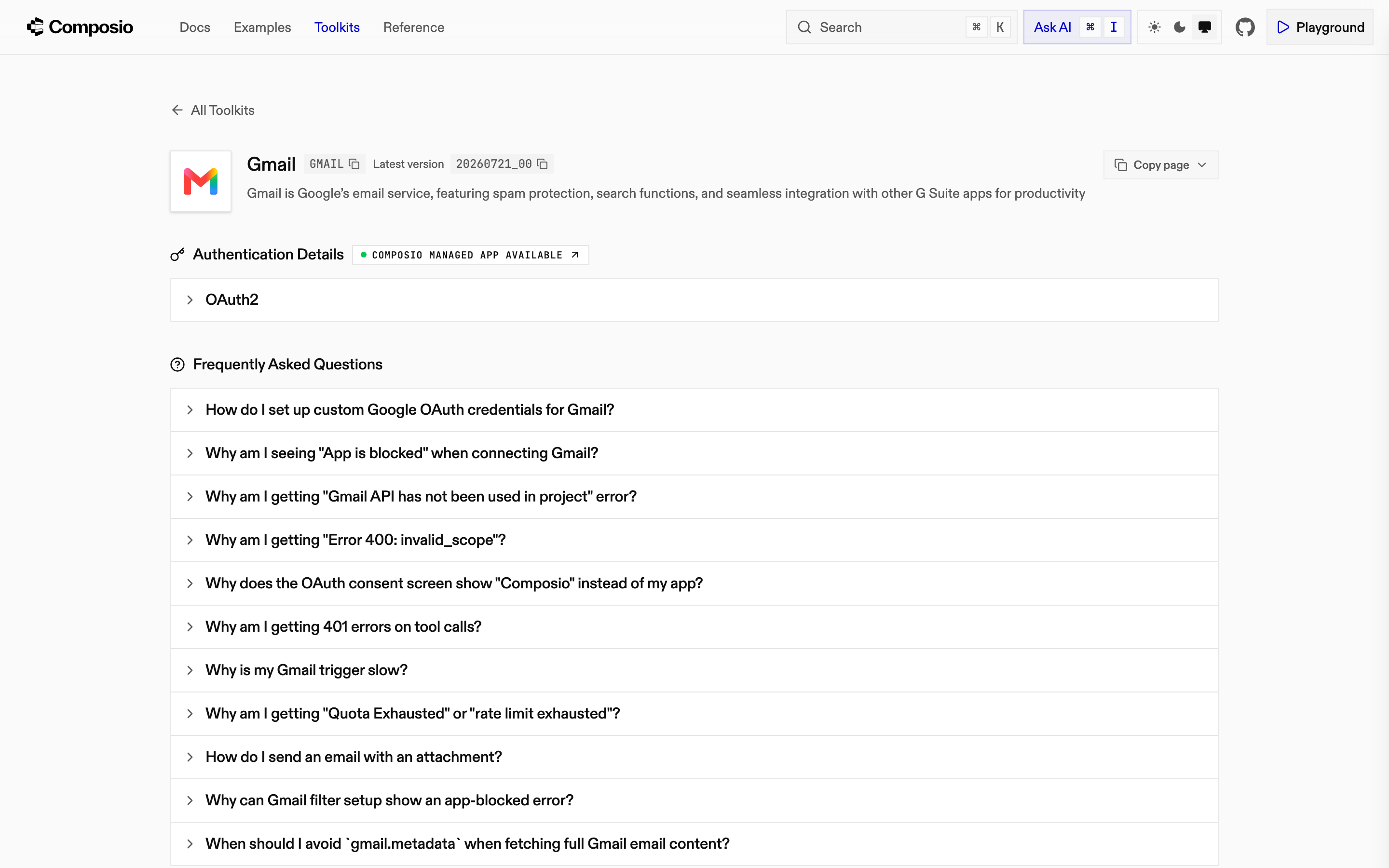
Step 2: Connect Your Account
Composio generates a hosted auth link for each user. Open it, approve the consent screen, done. The dashboard shows your connected account as ACTIVE, and from here on Composio owns token refresh.
Then mint your personal server URL:
instance = composio.mcp.generate(user_id="you@yourcompany.com", mcp_config_id=server.id)
print(instance["url"])
That URL is scoped to your user id and your connected accounts. Treat it, and your API key, like passwords.
Step 3: Point Your OpenClaw Agent at Composio
Open your agent's page on Maritime and go to the Console tab. One command registers the server:
HOME=/data openclaw mcp set composio '{"url":"PASTE_YOUR_COMPOSIO_URL","transport":"streamable-http","headers":{"x-api-key":"YOUR_COMPOSIO_API_KEY"}}'Two details worth knowing:
Confirm it saved:
HOME=/data openclaw mcp listStep 4: Restart the Agent
openclaw mcp set writes config; it does not hot-load the connection. Restart the agent from its dashboard page. On boot, the gateway reads the config, connects to Composio, and pulls in the tool list.
Step 5: Use Gmail from Your Agent
Tools from an MCP server arrive namespaced with the server name you chose, so your agent now has composio__GMAIL_SEND_EMAIL and composio__GMAIL_FETCH_EMAILS alongside everything it already had. Ask in plain language:
"Check my inbox for anything from billing and summarize it."
"Send an email to sam@example.com with the update."
The agent picks the tool, Composio executes the call with your stored credentials, and the result comes back like any other tool output.
Security Notes
Where This Fits
For Gmail specifically, Maritime ships a first-party integration: Connect Gmail on the agent page, no third party in the path. Composio's superpower is the long tail, the CRM or ticketing system or spreadsheet your workflow actually runs on, available to your agent without anyone building a bespoke integration first. Two honest caveats: with managed auth, the consent screen shows Composio's name, because it is their verified OAuth app doing the work, and Composio meters usage per tool call beyond its free tier. Maritime has no partnership with Composio. This is an independent tutorial.